
How to Increase WiFi Speed at Home (Complete Practical Guide 2026)


Introduction
One of the most common complaints from broadband customers is:
“Internet speed is good, but WiFi is slow.”
In most cases, the problem is not the fiber connection — it is WiFi setup inside the house.
In this guide, you will learn:
Why WiFi becomes slow
Proper router placement
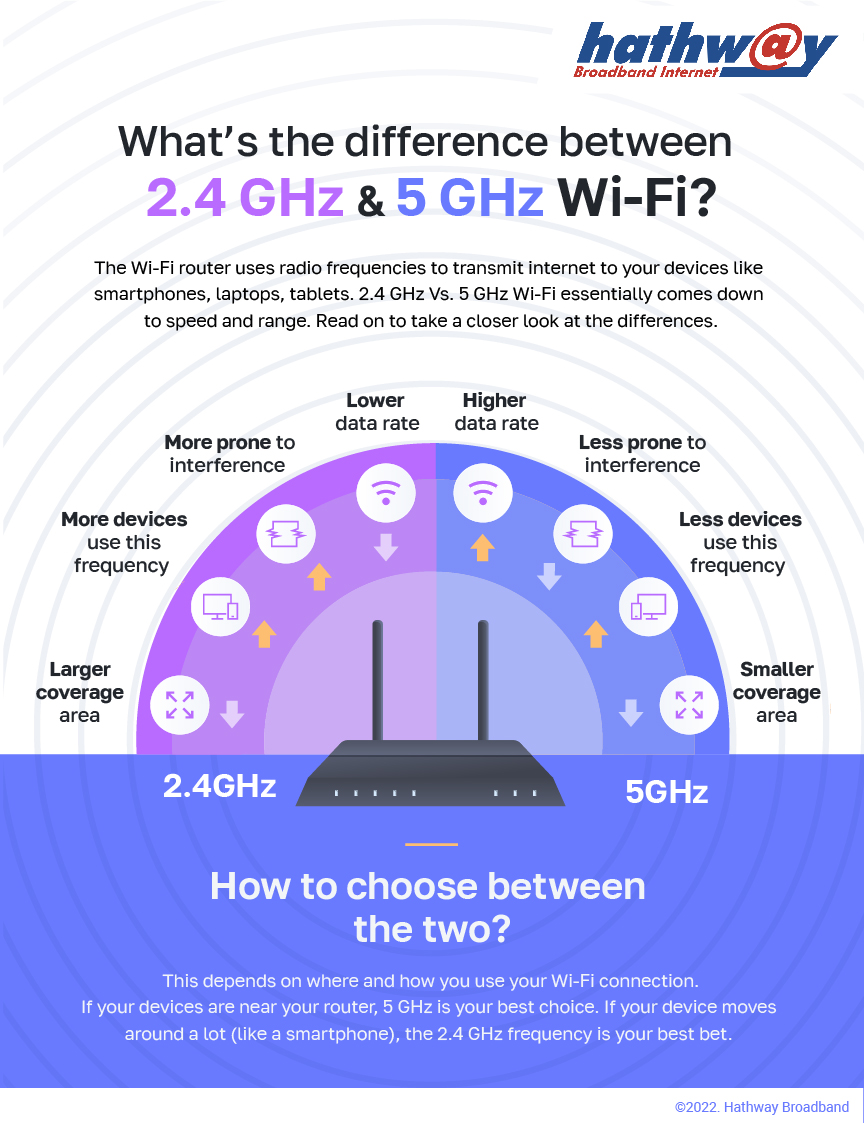
2.4 GHz vs 5 GHz difference
Channel optimization
Practical engineer-level tips
Let’s solve it step by step.
1️⃣ Place Router in Correct Location
Router placement is very important.
❌ Wrong Placement:
Inside cupboard
Near microwave
Near TV
On floor
Behind thick walls
✅ Correct Placement:
Center of the house
Open space
Elevated position
Away from metal objects
WiFi signals spread in circular pattern. If router is placed in corner, half signal is wasted.
2️⃣ Understand 2.4 GHz vs 5 GHz
Most modern FTTH routers support dual band.
| Feature | 2.4 GHz | 5 GHz |
|---|---|---|
| Speed | Medium | High |
| Range | Longer | Shorter |
| Interference | High | Low |
| Best For | Large area | High-speed near router |
For best results:
Use 5 GHz for TV & gaming
Use 2.4 GHz for distant rooms
Many FTTH networks using Gigabit Passive Optical Network (GPON) provide dual-band ONTs.
3️⃣ Restart Router Weekly
Small memory errors and cache buildup reduce performance.
Simple solution:
Restart router once per week
Power off for 2 minutes
Turn ON again
This refreshes connection.
4️⃣ Change WiFi Channel
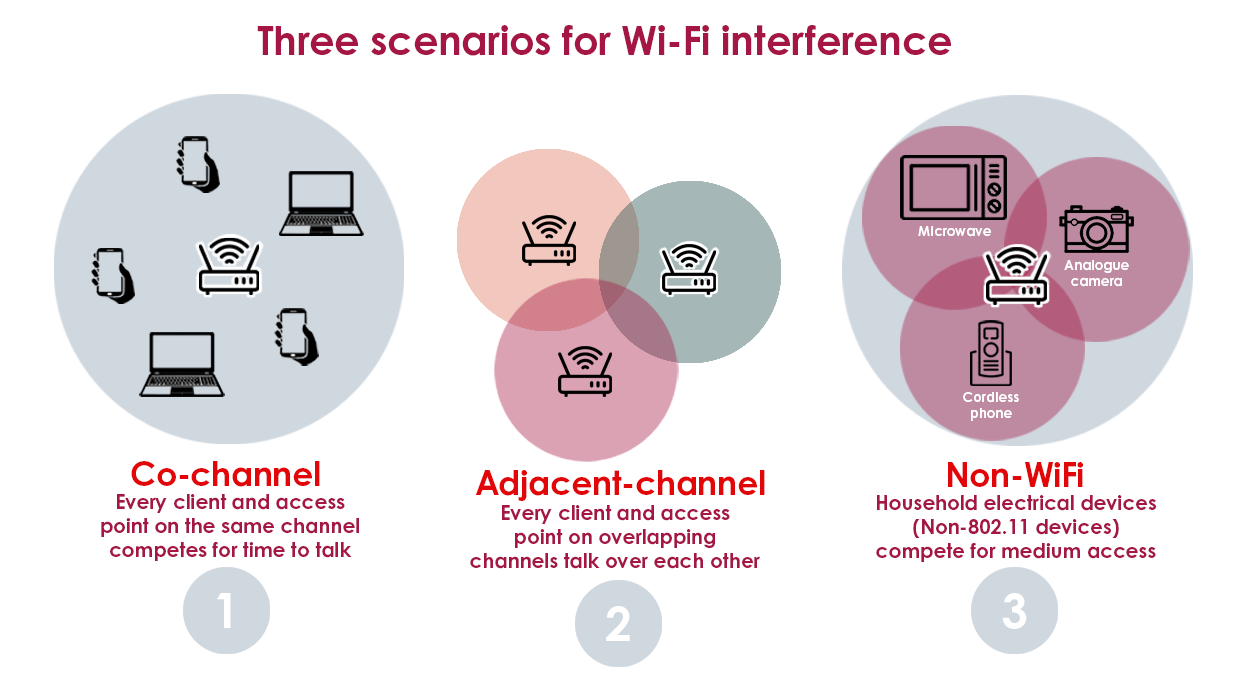
If many routers are nearby (apartment area), channel congestion happens.
Use auto channel or manually set:
Channel 1, 6, or 11 for 2.4 GHz
Auto for 5 GHz
This reduces interference.
5️⃣ Update Router Firmware
Old firmware may:
Reduce speed
Cause disconnections
Create security risk
Login to router panel:
192.168.1.1
Check for firmware update (if available).
6️⃣ Reduce Connected Devices
Too many devices slow down WiFi.
Example:
3 phones
2 TVs
1 laptop
1 CCTV
1 Alexa
Bandwidth gets divided.
Limit unnecessary background downloads.
7️⃣ Use LAN Cable for High-Speed Devices
For:
Gaming PC
Smart TV
Office desktop
Use LAN cable instead of WiFi for stable and full speed.
8️⃣ Upgrade Router if Needed
Old routers (300 Mbps single band) cannot handle 200+ Mbps plans.
Upgrade to:
Dual band router
Gigabit LAN ports
WiFi 5 or WiFi 6
Better hardware = better performance.
9️⃣ Use WiFi Extender (For Large Homes)
If house is big:
Install WiFi extender
Or use mesh system
This removes dead zones.
10️⃣ Check Actual Fiber Speed
Sometimes WiFi is fine but plan speed is low.
Test using:
LAN cable speed test
Check optical power
Confirm plan from ISP
Normal optical power range:
-8 dBm to -27 dBm
If below -28 dBm → speed may fluctuate.
Common Engineer Mistakes
❌ Blaming fiber without checking router
❌ Ignoring interference
❌ Not testing via LAN
❌ Replacing ONT unnecessarily
Always isolate WiFi issue from fiber issue.
Conclusion
Slow WiFi does not always mean bad internet.
Most issues are due to:
Wrong router placement
Band selection problem
Interference
Old hardware
By following these simple steps, you can significantly improve WiFi speed at home without changing your broadband plan.
As an FTTH engineer or blogger, educating customers about WiFi optimization builds trust and reduces complaints.
SEO Keywords
How to increase WiFi speed
WiFi slow solution
2.4 GHz vs 5 GHz difference
Improve broadband speed at home
Router placement tips
FTTH WiFi troubleshooting

0 Response to "How to Increase WiFi Speed at Home (Complete Practical Guide 2026)"
Post a Comment